 GroceryGret
New in GroceryGret: loyalty cards, list reminders and clearer deals
By GroceryGret · Published · Last updated
The next GroceryGret update is mostly about the moments around the list: standing at the register looking for your store card, forgetting the list exists until you're already at the store, and squinting at a deal to figure out what it actually is. Here's what's in version 1.8.
Your store cards, in the app you already have open
At checkout, the grocery list is usually already on your screen. Now your loyalty cards are one tap away from it. Tap Loyalty Cards at the top of the Stores or Trip tab, pick a card, and the barcode fills the screen with the brightness turned up so the scanner can read it.
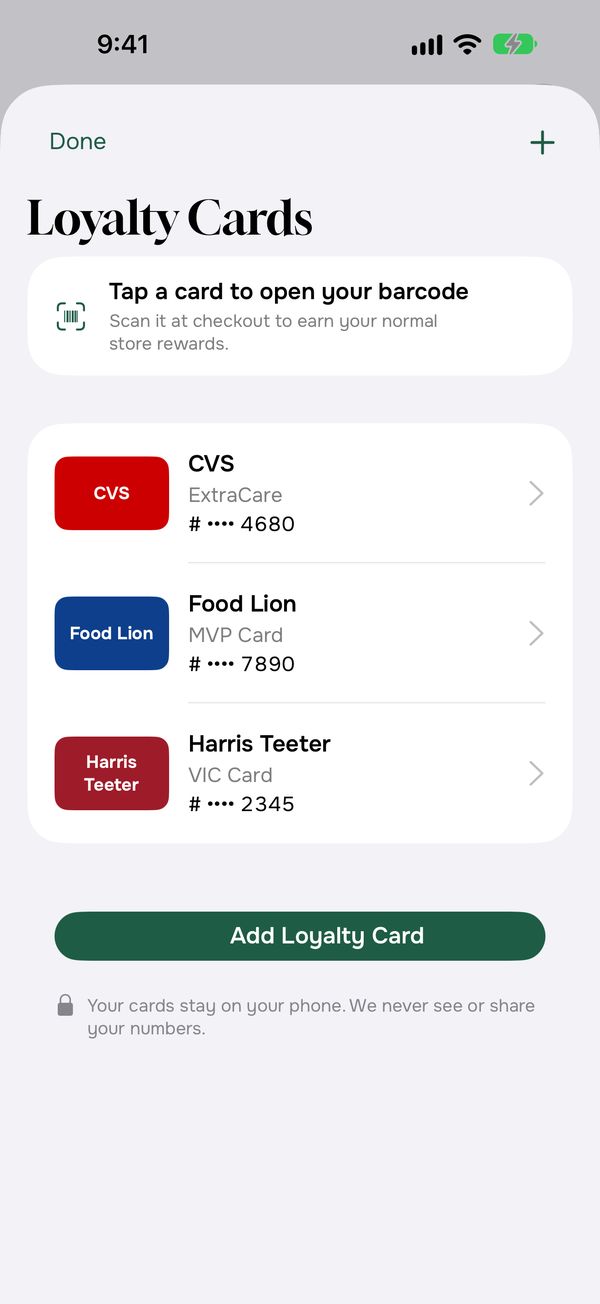
- Open Loyalty Cards. It's at the top of the Stores tab and the Trip tab. The first time, it takes you straight to adding a card.
- Pick your store. Search the list, or scroll. Grocery stores come first, then pharmacies.
- Scan the card or type the number. Point the camera at the barcode on your physical card or key tag, or type the number printed under it.
- Show it at checkout. Tap the card. The barcode opens full screen and your phone gets brighter so the scanner can read it.
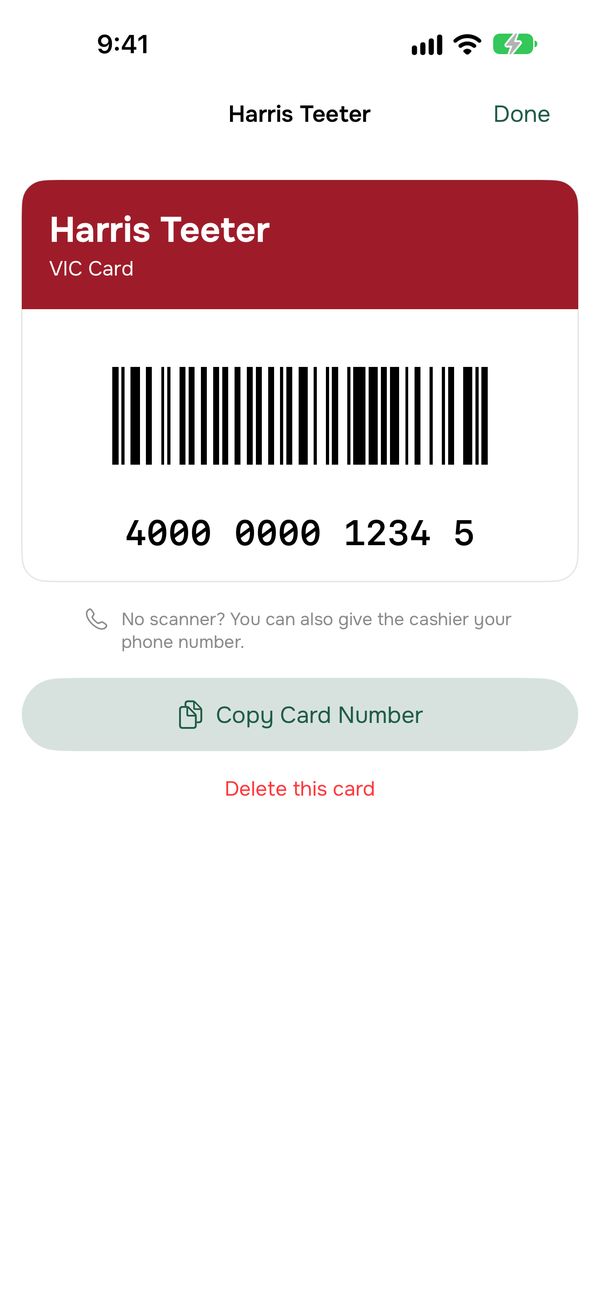
Why some stores ask for a phone number instead. We only offer a barcode for stores where we're confident a phone screen will scan at the register. Some chains, like Publix and Wegmans, look up your account by phone number at checkout, so for those GroceryGret saves the number you give the cashier. If your store isn't listed, there's a button to ask us to add it, and we check it before we do.
Where your cards are kept. On your phone only, in the iPhone's secure storage. They aren't uploaded to our server.
A nudge when the list has been sitting
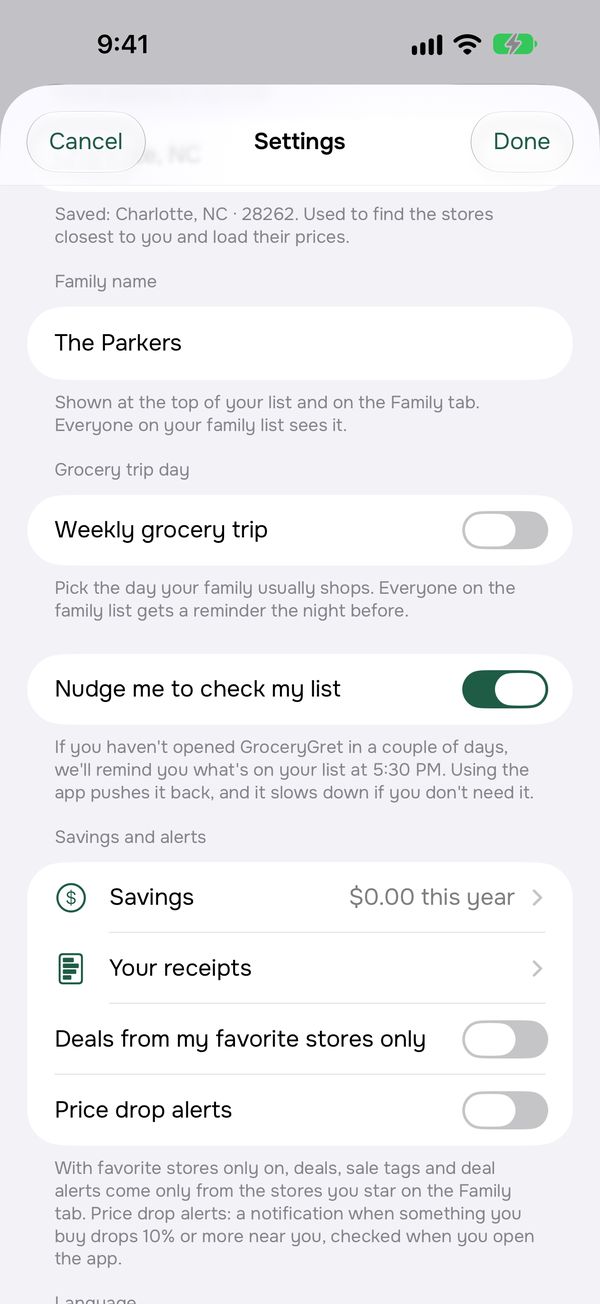
Most families don't shop every day, and a list nobody opens for a week tends to get forgotten right when it's needed. If a couple of days go by without you opening GroceryGret, you'll get one reminder around 5:30 in the evening with what's on the list, like "5 things on your list. Milk, eggs, bananas. Anything else to add before you shop?"
- Opening the app pushes the reminder back, so if you use GroceryGret every day or two you'll rarely see it.
- If you've set a shopping day, it won't double up with that reminder.
- If you ignore it a few times in a row, it slows down to once a week. It's a reminder, not a nag.
- Turn it off anytime in Settings with Nudge me to check my list.
Know when your family adds something
A shared list only helps if people know it changed. Now everyone on your family list hears when someone adds something, so the person heading to the store finds out about the milk before they're back home. You can change who gets told on the Family tab, under Notify when someone adds.
Deals you can read at a glance
The deals at the bottom of the Stores tab, under Deals near you, now show the brand and size on their own line, and the conditions as small labels: per pound, store card, digital coupon, or "2 for $5". The percent off sits on the picture.
About the pictures: a deal gets a photo only when we're sure it shows the right thing. That's either the exact product, matched by brand, name and size, or an example photo of a plain fresh food like shrimp or apples, labeled "Example photo" on the deal's screen. Everything else gets an aisle icon instead of a guess.
Smaller things
- A proper GroceryGret loading screen while the app starts.
- More of the app in Spanish when your iPhone is set to Spanish (from version 1.7).
- Better receipt reading, including H Mart receipts (from version 1.7).
Try it
GroceryGret is free on the App Store for iPhone. Get the app. More guides: all how-to guides.